Wi-Fi troubleshooting gets expensive when you start with shopping. A newer router can add capacity and features, but it cannot change where your walls are, and it cannot repair a bad modem connection. The fastest way to improve coverage is to separate four different problems: internet speed, radio coverage, network congestion and client limitations.
- Verify the internet connection over Ethernet.
- Measure Wi-Fi close to the router.
- Measure the actual problem locations.
- Improve placement and test again.
- Compare 2.4, 5 and 6 GHz behavior.
- Check the client device.
- Only then decide whether you need another access point, mesh node or router.
Step 1: separate Wi-Fi problems from internet problems
Connect a computer to the router with Ethernet and run a speed test against a reliable test service. This gives you a rough WAN baseline. If wired performance is already poor, changing Wi-Fi channels cannot fix the upstream problem.
Then test wireless performance within a few feet of the router. If Wi-Fi is fast nearby but poor in one room, the router has enough internet bandwidth; the problem is radio propagation or placement. If Wi-Fi is poor everywhere, investigate router settings, interference, client capability and firmware.
| Test result | What it suggests |
|---|---|
| Ethernet slow, Wi-Fi slow | ISP/modem/router-WAN issue first |
| Ethernet fast, Wi-Fi slow everywhere | Wireless configuration, congestion or hardware issue |
| Wi-Fi fast near router, slow in specific rooms | Coverage / placement problem |
| One device slow, another fast in same place | Client problem |
Step 2: fix router placement before anything else
A router hidden in a cabinet at floor level in one corner of the building forces the signal through more material than necessary. A better location is usually central to the area that needs coverage, elevated, in the open and away from large metal objects.
Moving an access point only a few meters can remove one or two walls from the path to an important room. That can matter more than adding theoretical radio speed.
- Reasonably central to the rooms that matter.
- Above floor level.
- Not inside a closed TV/media cabinet.
- Away from large metal surfaces and dense utility spaces.
- Not directly beside other high-power electronics if avoidable.
Step 3: understand 2.4 GHz, 5 GHz and 6 GHz
Each band solves a different part of the problem. 2.4 GHz usually reaches farther and penetrates obstacles better, but it has less spectrum and is often crowded. 5 GHz offers more capacity and is the workhorse band for many homes. 6 GHz can provide very clean wide channels for compatible Wi-Fi 6E/7 devices, but generally has less reach through walls.
Do not force every device onto the “fastest” band. A sensor or distant phone may be more reliable on 2.4 GHz, while a nearby laptop can benefit from 5 or 6 GHz.
Step 4: measure the weak zone instead of guessing
The Wi-Fi icon is not a diagnostic tool. Walk through the rooms you actually use and record speed and signal quality. Repeat the same test from roughly the same position. If your router or Wi-Fi app exposes signal strength in dBm, use it as a comparative measurement rather than treating one universal number as a guarantee.
Also test at the time the problem usually appears. Evening congestion can look different from a quiet morning.
Step 5: look for channel congestion
In apartments and dense neighborhoods, several nearby networks can compete for airtime. Automatic channel selection is a sensible default on modern equipment, but a router can occasionally remain on a poor channel. A Wi-Fi analyzer can show whether many strong neighboring networks overlap your current channel.
Step 6: account for the building
Dense masonry, reinforced concrete, metal-backed insulation, mirrors, appliances and large water volumes can all weaken radio signals. You cannot configure your way around every obstacle. Sometimes the correct answer is another access point on the far side of the obstacle.
This is why one powerful router is not always better than two well-placed access points at lower transmit power.
Step 7: test more than one client
A new router cannot give an old laptop a new radio. Compare two devices at exactly the same location. If a recent phone is fast while one laptop is slow, check the laptop adapter, drivers, antenna configuration and power-saving settings before changing the whole network.
Step 8: move fixed high-traffic devices to Ethernet
Desktop PCs, TVs, game consoles and NAS systems do not need to consume wireless airtime when cabling is practical. Ethernet is not only about faster peak throughput; it also removes contention from Wi-Fi and gives fixed devices a more stable path.
Even one or two strategic cable runs can improve the wireless experience for everything that must remain wireless.
Step 9: if you add a node, do not put it in the dead zone
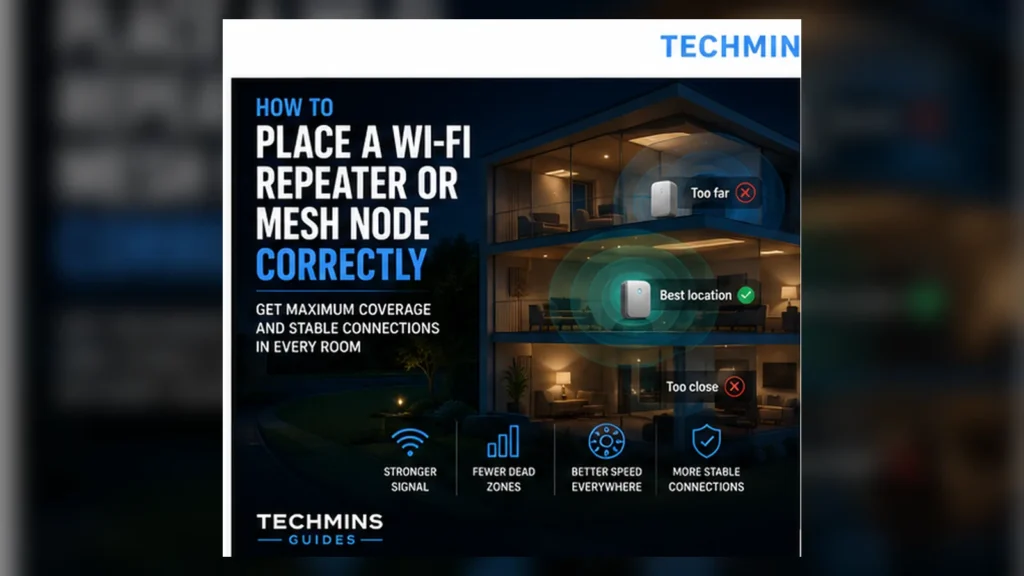
A wireless repeater or mesh node needs a healthy upstream connection. Placing it where the phone already has almost no signal means the node is trying to repeat a poor link. Place it between the router and the problem room, where it can still receive a strong signal and extend coverage beyond that point.
See our mesh and repeater placement guide for the full placement workflow.
Step 10: prefer wired backhaul when possible
If a secondary access point or mesh node can use Ethernet backhaul, it does not need to spend wireless airtime relaying traffic back to the main router. The result is usually more consistent throughput and lower sensitivity to interference.
MoCA can also be useful in homes with suitable coax cabling, while powerline networking is much more dependent on the electrical installation and should be tested rather than assumed.
Step 11: check roaming expectations
Adding access points does not guarantee that every client will switch at exactly the moment you want. Client devices ultimately participate in roaming decisions. A phone can sometimes cling to a weak access point longer than expected. Modern coordinated Wi-Fi systems can help, but consistent SSIDs, security settings and sensible cell overlap still matter.
When a new router actually helps
- The current unit is unstable, no longer receiving security updates or frequently reboots.
- It lacks the bands/features your clients can use.
- You need 2.5 GbE or faster ports for a multi-gig connection.
- The CPU is genuinely overloaded by your workload or number of devices.
- You want a mesh ecosystem with better management and roaming support.
When another access point is the better purchase
If the network is fast near the router and slow only in distant rooms, a second well-placed access point usually addresses the actual problem more directly. The goal is not to make one radio transmit “harder”; it is to shorten the radio path.
A repeatable home test plan
- Record wired internet speed.
- Record Wi-Fi speed close to the router.
- Record Wi-Fi speed in each important room.
- Move the router to a better location and repeat.
- Compare bands if your router allows it.
- Test the same weak location with a second client.
- Wire fixed high-traffic devices where practical.
- If needed, test a temporary access point/node location before installing permanently.
Common mistakes
- Buying a faster router without measuring wired speed first.
- Putting a mesh node inside the dead zone.
- Hiding the router in a cabinet for appearance.
- Assuming 6 GHz should be used everywhere.
- Judging the whole network from one old client device.
- Changing several settings at once and losing the ability to identify what helped.
How much overlap should access points have?
Multiple access points need enough overlap for clients to roam without losing connectivity, but too much overlap at high transmit power can make clients cling to a distant AP. In a home, the practical method is measurement: place the second AP, lower or adjust power only if necessary, then walk the normal path through the building while monitoring which node the client uses.
Should every access point use the same SSID?
For a normal coordinated home network, using the same SSID, security mode and credentials across access points usually gives clients the best chance to roam naturally. Separate SSIDs are useful for diagnosis or deliberate segmentation, but they force the user to make more manual choices.
Why “more transmit power” can make things worse
Wi-Fi is two-way. A router may be able to transmit farther than a battery-powered phone can respond. Turning access-point power to maximum can create an asymmetric link where the client hears the AP but the AP cannot reliably hear the client. Good design aims for balanced cells, not maximum advertised range.
What to measure after every change
- Internet throughput in the weak room
- Latency and packet loss during a sustained test
- Which band/AP the client is actually using
- Performance at the edge of the coverage area
- Whether another important room became worse