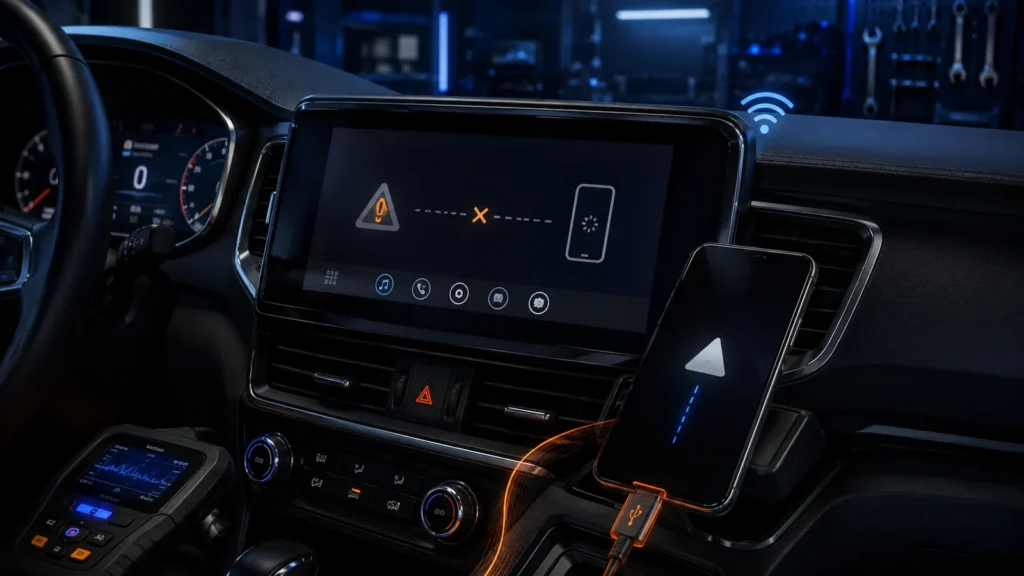
Quick answer: Troubleshoot Android Auto by isolating the chain: phone → cable or wireless link → vehicle USB/radio → Android Auto settings → permissions/software. Google’s official troubleshooting guidance starts with compatibility, cable quality, infotainment settings/restart and receiver firmware — the same order that prevents you from resetting everything unnecessarily.
Step 1: verify compatibility
Not every USB-equipped car supports Android Auto. Confirm that the vehicle or aftermarket receiver supports Android Auto and whether the connection is wired, wireless or both.
Step 2: reboot both ends
Restart the phone. Fully restart the infotainment system if the vehicle allows it. Some head units continue running in standby when the screen is turned off, so a true system reboot can behave differently from simply turning the display off.
Step 3: wired Android Auto — test the cable first
Google specifically recommends checking the USB cable. Use a known-good short data-capable cable. A cable can charge perfectly while its data conductors are damaged or poorly implemented.
Things to check
- Try another quality cable.
- Try another Android phone if available.
- Inspect the phone USB-C port for lint.
- Use the vehicle USB port specifically marked for data/Android Auto.
- Avoid adapters and extension cables while troubleshooting.
Step 4: separate charging from data
If the phone charges but Android Auto never starts, do not conclude the port is good. Charging only proves power is present. Android Auto needs a functioning data connection and a compatible port.
Step 5: check vehicle settings
Google advises confirming Android Auto is enabled in the infotainment system. Some cars allow phone projection to be disabled per device. Remove the phone from the vehicle’s saved-device list and pair/set up again if necessary.
Step 6: wireless Android Auto — understand the handshake
Wireless Android Auto typically uses Bluetooth for discovery/initial coordination and Wi-Fi for the high-bandwidth projection connection. A successful Bluetooth phone call connection does not guarantee the Wi-Fi projection link is working.
For wireless problems
- Delete the car from the phone’s Android Auto/connected-car list.
- Delete the phone from the head unit.
- Remove stale Bluetooth pairings.
- Reboot both devices.
- Pair again from scratch.
- Temporarily disable VPN/hotspot features if they interfere with Wi-Fi networking.
Step 7: check Android permissions and updates
Install current Android system and Android Auto updates. Check that required permissions have not been denied after an OS update. If Android Auto worked before a major update and fails immediately after, software compatibility becomes a stronger suspect.
Step 8: test another phone
This is one of the fastest isolation tests. If a second phone works immediately with the same cable and car, focus on the original phone. If neither works, the cable/head unit/vehicle side becomes more likely.
Step 9: test wired if wireless fails
If the car supports both, wired Android Auto is an excellent diagnostic baseline. If wired is stable but wireless is not, the projection software is probably functional and the fault is more likely in pairing, Wi-Fi or head-unit wireless implementation.
Step 10: check receiver firmware
Google’s troubleshooting page specifically recommends checking the manufacturer website for firmware updates on aftermarket receivers. Vehicle infotainment updates can also resolve compatibility issues.
Symptom-based diagnosis
| Symptom | Most useful first test |
|---|---|
| Phone charges, no Android Auto | Different data cable / correct USB data port |
| Disconnects when cable moves | Cable + phone port inspection |
| Wireless pairs but projection never starts | Forget car/phone and re-pair; check Wi-Fi |
| Worked until phone OS update | Updates, permissions, second-phone test |
| All phones fail | Head unit settings, reboot, firmware |
| Wired works, wireless does not | Wireless pairing/Wi-Fi implementation |
Do not factory-reset first
A full phone or infotainment reset destroys useful diagnostic information and creates extra setup work. Use isolation testing first: another cable, another phone, wired vs wireless, another USB port and receiver restart.
Safety note
Perform setup and troubleshooting while parked. Do not attempt pairing, cable inspection or menu changes while driving.
Bottom line
Android Auto connection problems become much easier when you stop treating “Android Auto” as one component. Test each link independently. Most faults can be narrowed to the phone, connection path or receiver without replacing anything.