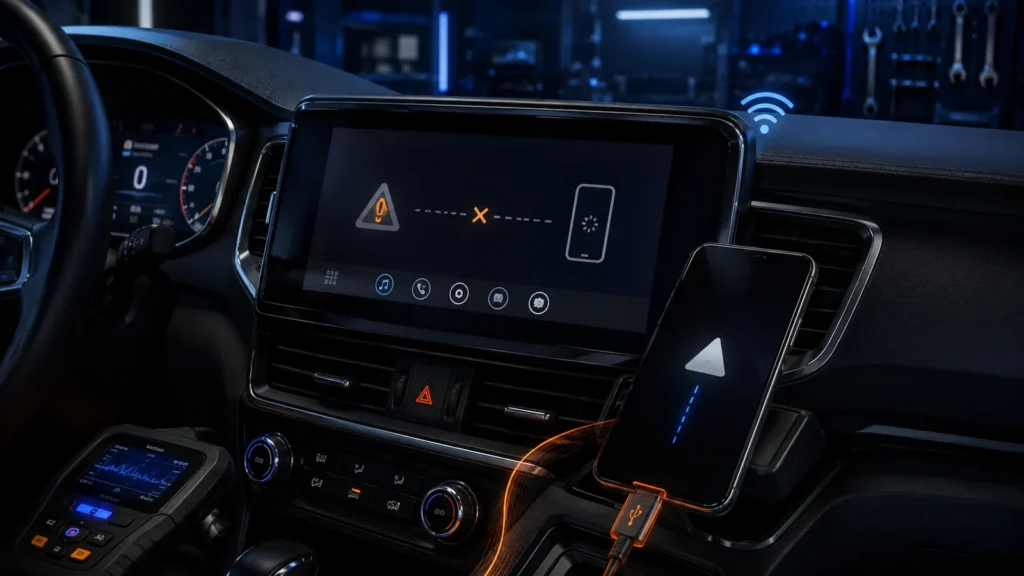
Randomly deleting apps, resetting the head unit and replacing the phone at the same time makes Android Auto harder to diagnose. The reliable method is to change one layer at a time and prove where the connection stops working.
- Confirm the exact car/receiver supports Android Auto and the connection type you are trying to use.
- For wired Android Auto, use a known-good data cable — not a charge-only cable.
- For wireless setup, Bluetooth, Wi-Fi and location services may all be involved.
- Try another phone if possible; it is one of the fastest ways to separate vehicle and phone faults.
- Do not factory-reset the whole infotainment system until simpler tests fail.
Step 1: confirm compatibility
A USB port in a car does not automatically mean Android Auto support. Check the vehicle manual, manufacturer support page or aftermarket receiver documentation. Also confirm whether that exact model/year supports wired Android Auto, wireless Android Auto or both.
Android Developers currently documents Android Auto compatibility for phones running Android 9 or newer. Vehicle and phone requirements can still vary, so use Google’s current support guidance for the exact setup.
Step 2: reboot both sides properly
Restart the phone. Then restart the infotainment system using the vehicle’s documented procedure if one exists. Simply turning the display off may leave the head unit in standby rather than fully rebooting it.
If the problem appeared after an update or after many days of continuous operation, a full reboot is a low-risk first test.
Step 3: decide whether you are diagnosing wired or wireless Android Auto
| Wired path | Wireless path |
|---|---|
| Phone USB port | Bluetooth pairing for initial discovery/setup |
| USB data cable | Wi-Fi link for Android Auto session |
| Vehicle data-capable USB port | Phone Wi-Fi/Bluetooth state |
| Head-unit USB interface | Vehicle wireless Android Auto support |
Step 4: for wired Android Auto, suspect the cable early
A cable can charge a phone perfectly and still be poor for data. Some USB-C cables are designed mainly for charging, while worn connectors can become intermittent when the car vibrates. Use a short, known-good data cable from a reputable source.
- Try a different known-good cable.
- Avoid unnecessary adapters and extension cables.
- Inspect both connectors for lint, looseness or damage.
- Test the phone/cable on another data device if possible.
Step 5: identify the correct vehicle USB port
Cars can have several USB sockets but only one may support infotainment data. Others may be charge-only. Look for the Android Auto/smartphone icon in the manual or test the specific port named by the manufacturer.
If Android Auto worked in one port before and now fails, inspect that port for debris or mechanical looseness.
Step 6: check the phone’s USB connection behavior
When a wired connection is established, the phone should detect a data-capable host. If the phone only charges and never reacts, the failure is likely earlier in the chain: cable, connector or vehicle USB interface.
Remove aggressive battery restrictions from Android Auto-related system components only if the phone vendor’s power management is known to interfere. Do not disable security features indiscriminately.
Step 7: for wireless Android Auto, rebuild the pairing carefully
Google’s setup guidance uses Bluetooth for the initial pairing flow and requires Wi-Fi/Bluetooth to remain enabled during setup. If the pairing record is stale, remove the vehicle from the phone’s Bluetooth list and remove the phone from the vehicle, then pair again from scratch.
Step 8: verify Wi-Fi and Bluetooth are actually available
Wireless Android Auto relies on a local Wi-Fi link after discovery. If the phone is aggressively disabling Wi-Fi, running unusual VPN/firewall software or has broken wireless drivers/firmware, the session can fail even though Bluetooth pairing succeeds.
Temporarily disable non-essential network-management apps for diagnosis, then re-enable them after identifying the cause.
Step 9: review Android Auto permissions and saved cars
Open Android Auto settings on the phone and review previously connected cars, startup behavior and permissions. If the vehicle is listed as rejected/blocked, remove that state and try again. Ensure the phone can access the permissions needed for the features you use.
Step 10: update the phone and the vehicle separately
Install current Android system updates and Google Play system updates. Then check the vehicle manufacturer or receiver vendor for infotainment firmware updates. A phone-side update cannot repair an old head-unit compatibility bug, and a head-unit update cannot repair broken phone software.
Step 11: test another phone
This is one of the highest-value diagnostic steps. If a second compatible Android phone connects immediately with the same car and cable, the vehicle path is probably healthy and the first phone needs attention. If neither phone works, shift suspicion toward the cable, USB port, radio or vehicle configuration.
Step 12: test your phone in another Android Auto vehicle if possible
The inverse test is equally useful. If your phone works elsewhere, you have evidence that its Android Auto stack is fundamentally functional.
Step 13: isolate wireless interference only after basic setup works
If wireless Android Auto connects but frequently drops, that is a different problem from “never connects.” At that point, investigate wireless stability, head-unit firmware, phone heat/power management and local interference rather than repeatedly redoing onboarding.
Step 14: check developer / USB modifications
If the phone uses unusual developer settings, custom ROMs, USB debugging configurations or enterprise management policies, return to a supported baseline where practical. Android Auto is designed around standard consumer configurations, and deep system modifications can add failure points.
Step 15: when to clear app data or reset network settings
These are later-stage steps because they destroy useful state. Clear Android Auto-related state only after cable, port, compatibility and pairing tests fail. Resetting all network settings also removes saved Wi-Fi and Bluetooth relationships, so use it deliberately.
Step 16: when to reset the head unit
A factory reset can remove radio presets, paired phones, profiles and vehicle settings. Before using it, check whether the head unit has a softer reboot or “delete smartphone connections” option. A full reset should be a controlled final test, not the first click.
Symptom-to-cause map
| Symptom | Most useful first checks |
|---|---|
| Phone only charges | Data cable, correct USB port, connector condition |
| Bluetooth pairs but Android Auto never starts | Wireless support, Wi-Fi state, Android Auto settings |
| Works with another phone | Original phone software/settings |
| No phone works | Vehicle/head unit, USB port, firmware |
| Connects then drops | Cable movement or wireless stability, heat, firmware |
| Stopped after update | Reboot, current patches, vendor compatibility notes |
A 10-minute diagnosis order
- Confirm vehicle/phone compatibility.
- Restart phone and infotainment.
- Wired: try a known-good data cable and the documented USB port.
- Wireless: remove pairing from both sides and pair again.
- Check Android Auto settings and permissions.
- Update phone and infotainment software.
- Test another phone.
Android Auto vs the car’s native Android system
If the vehicle runs Android Automotive OS, remember that it is separate from Android Auto phone projection. A native app failure and an Android Auto connection failure are different troubleshooting paths. Our Android Auto vs Android Automotive OS guide explains the difference.
Intermittent wired failures: reproduce movement
If Android Auto disconnects over bumps or when the phone is moved, gently flex the cable near each connector while parked. An intermittent physical connection often behaves perfectly on a desk but fails in a vibrating car. Replace the cable before assuming a software bug.
Wireless Android Auto and heat
Wireless projection uses radios continuously while navigation, charging and the display can also heat the phone. If failures happen only after long drives or during wireless charging, compare behavior with the phone cool and without a thick case. Thermal throttling or radio instability can be a contributing factor even when the initial connection is fine.
VPNs, private DNS and security apps
Network-modifying software can interfere with unusual local connections. A VPN that works perfectly for normal internet traffic can still complicate a local Wi-Fi link or captive discovery process. Temporarily disable VPN/private-DNS/security filtering as a diagnostic step, not as a permanent recommendation.
Work profiles and managed phones
Enterprise device-management policies can restrict Bluetooth, USB, app permissions or background behavior. If Android Auto works on a personal phone but not a company-managed phone, ask the administrator whether policy is the limiting factor before resetting the car.
Aftermarket head units add another firmware layer
With an aftermarket receiver, check both the hardware manufacturer’s firmware and any vehicle-interface adapter used for steering-wheel controls or OEM integration. A failing interface module can sometimes look like an Android Auto problem even when the phone and head unit are healthy.
What evidence to collect before contacting support
- Phone model and Android version
- Vehicle model/year or receiver model
- Wired or wireless connection
- Cable model/length if wired
- Whether a second phone works
- Whether the failure is immediate or occurs after time/movement
- Infotainment firmware version
That information turns “Android Auto does not work” into a reproducible case that a dealer, receiver vendor or phone manufacturer can actually investigate.