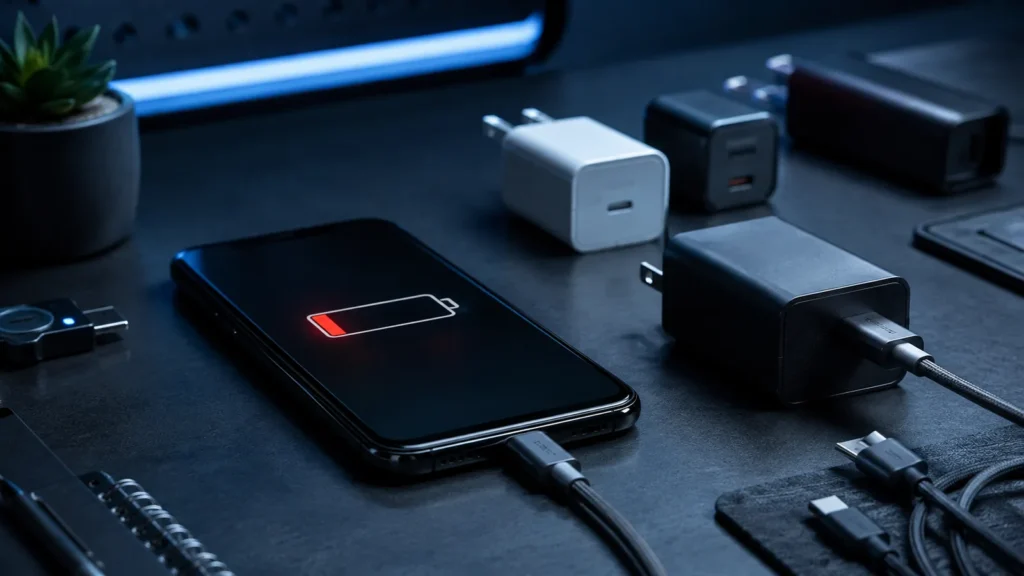
Slow USB-C charging is frustrating because every part can look compatible. The plug fits, the battery icon appears, and the charger has a big wattage number printed on it — yet the device charges slowly or even loses battery under load.
- USB-C does not guarantee USB Power Delivery or a specific wattage.
- The charger, cable and device must agree on a supported power profile.
- USB PD 3.1 Extended Power Range enables power levels above 100W, up to 240W with suitable equipment.
- Multi-port chargers may divide their advertised power when several devices are connected.
- Heat, battery state and heavy device load can reduce the net charging rate.
1. Check what the device actually accepts
A 140W charger cannot force 140W into a laptop designed to accept 65W. The device advertises the power profiles it supports and selects a compatible option during USB Power Delivery negotiation.
Look up the manufacturer’s recommended charger or USB-C input specification. For laptops, the original power adapter is a useful baseline.
2. Check the charger’s per-port rating
Marketing often shows the total maximum output of the charger, not what one USB-C port can deliver in every configuration. A “100W” dual-port charger might provide 100W from one port when used alone but split the budget when another device is connected.
Read the small output table on the charger or its specification sheet. Manufacturers normally list combinations such as C1 only, C1+C2 and C1+C2+USB-A.
3. Verify USB Power Delivery support
USB Power Delivery is the standardized negotiation system used by many USB-C laptops, tablets and phones. Proprietary fast-charging modes can coexist with USB-C, but a charger that lacks the protocol your device expects may fall back to a lower rate.
4. The cable can be the bottleneck
Cables are not all equivalent. USB-IF documents that USB PD 3.1 can deliver up to 240W over appropriately rated USB-C cables/connectors. Higher-current and Extended Power Range operation requires cables designed and electronically identified for the relevant capability.
A cable bundled with a low-power accessory may charge a phone but fail to provide the power a high-performance laptop expects.
| Possible bottleneck | Symptom | Test |
|---|---|---|
| Device limit | Same wattage with several powerful chargers | Check manufacturer input spec |
| Charger port limit | Fast on one port, slow on another | Read per-port output table |
| Cable limit | Different speed after cable swap | Use known-rated cable |
| Power sharing | Speed drops when second device connected | Test charger with one port only |
| Thermal limit | Fast initially, then slows while hot | Test cool/idling device |
5. Check whether you are using the correct USB-C port
On some laptops, not every USB-C port supports the same charging input. Docking stations may also provide limited USB PD passthrough. If the device has a preferred charging port, use it for diagnosis.
6. Disconnect other devices from a multi-port charger
GaN chargers often dynamically redistribute their power budget. Plugging in a phone can cause the laptop port to renegotiate to a lower profile. Test the target device alone before deciding the charger is defective.
7. Account for device workload
Charging power and battery charging rate are not the same number. If a laptop receives 65W while the CPU/GPU/display are consuming 50W, only part of the incoming power is available to charge the battery. Under a heavy workload, the battery percentage can rise slowly even though the charger is working correctly.
8. Heat and battery protection can intentionally slow charging
Battery-management systems reduce charge power as the battery approaches full capacity and when temperature is high. Many phones and laptops also offer optimized charging modes that intentionally pause or slow charging to reduce time spent at high state of charge.
USB-C wattage is a negotiated ceiling
Think of the printed charger wattage as capacity, not a constant flow. During USB PD negotiation, source and sink select a compatible voltage/current combination. The cable also participates in determining what is safe at higher power.
Why a 100W charger may show only 60–65W
- The laptop is designed for 65W input.
- The cable does not support the required current/profile.
- The charger is sharing power with another port.
- The battery is nearly full.
- The device is hot.
- The charger and device do not share the same fast-charge protocol.
Can a more powerful charger damage the device?
With standards-compliant USB Power Delivery equipment, the device requests supported power rather than being forced to consume the charger’s maximum rating. A 140W-capable charger can therefore be appropriate for a device that needs less power, provided the charger/cable are reputable and compatible.
When you should replace the cable first
Cables are inexpensive compared with chargers and are exposed to repeated bending. If charging disconnects when the cable moves, the connector feels loose or a known-good rated cable immediately improves performance, retire the suspect cable.
When the charger is the likely problem
- Several known-good cables show the same low limit.
- The charger fails to advertise the expected PD profiles.
- Output collapses or disconnects under sustained load.
- The charger becomes abnormally hot or shows physical damage.
A five-minute diagnosis
- Check the device’s official charging requirement.
- Connect only that device to the charger.
- Use the charger’s highest-rated USB-C port.
- Use a known-good appropriately rated cable.
- Test while the device is cool and mostly idle.
- Compare with the original charger if available.
If you need a more systematic workflow, our complete slow USB-C charging diagnosis guide goes deeper into identifying the exact bottleneck.