
A massive thank you to @John_Gardi on X for the tip on how to back up and restore flight controllers using STM32CubeProgrammer. This tool reads the processor’s memory, making a complete backup of the firmware and configurations in a single file, which you can later restore.

Disclaimer
I’ve only briefly tested this method. While it seems to work well, I advise caution. I am not responsible for any damage or configuration loss to your FC caused by following these instructions. Always back up your flight controller using conventional methods before trying this one.
For a safe backup/restore method, see this guide: https://oscarliang.com/backup-restore-betaflight-config/
Why It Matters?
In my limited testing, I successfully switched between two different Betaflight versions, retaining all customized settings. The backup and restore process took only about 30 seconds, making it an effective and efficient method.
This method should work with any flight controller using STM32 processors, but I’ve tested it with F405 so far. It should work on both Betaflight and iNav flight controllers.
Download
Get STM32CubeProg here: https://www.st.com/en/development-tools/stm32cubeprog.html
Enter DFU Mode

Follow this guide to put your flight controller in DFU mode: https://oscarliang.com/dfu-mode/
Close Betaflight Configurator, but leave the FC connected to your computer (still in DFU mode).
Connecting STM32CubeProg

Run STM32CubeProgrammer.
In the dropdown list next to ‘connect’, select “USB”, then click ‘Connect’.
Reading Flight Controller
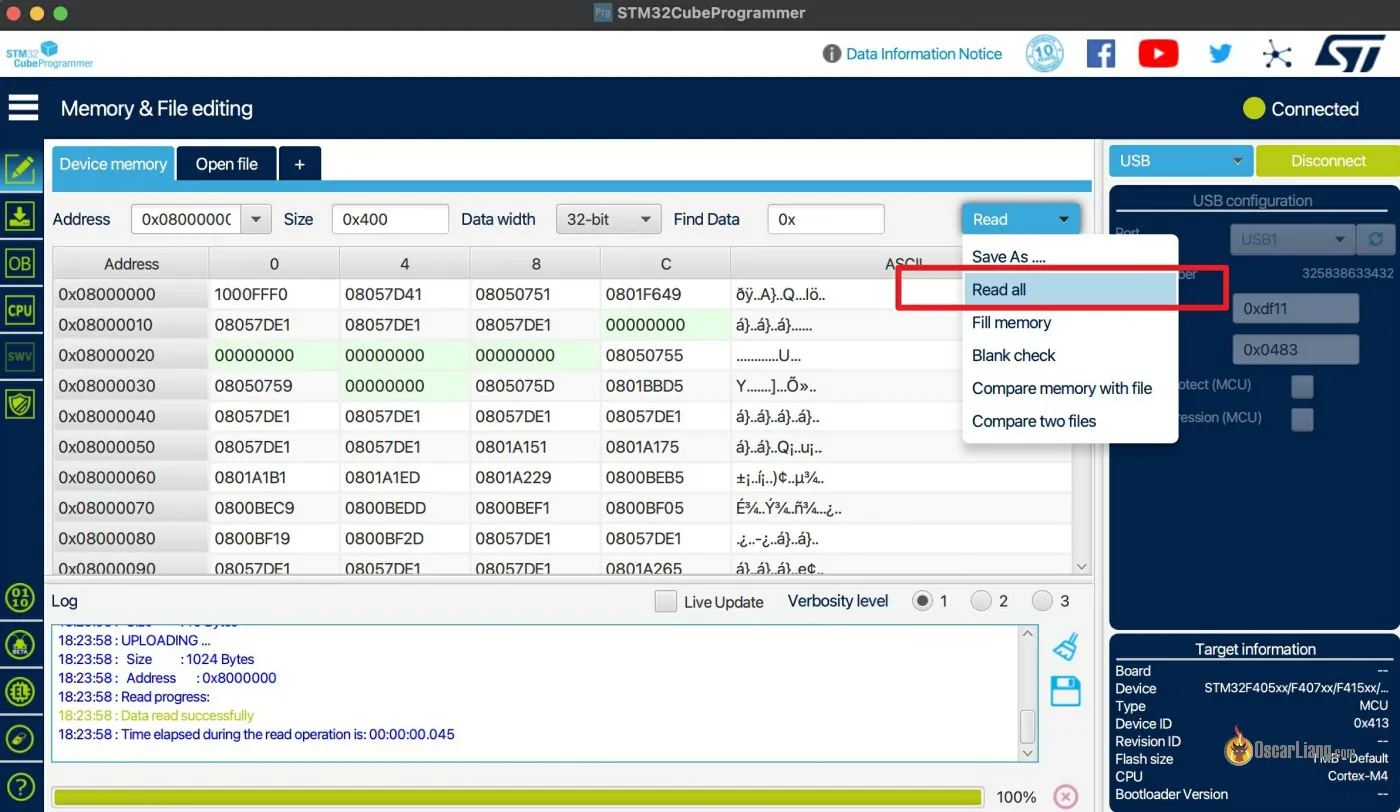
After connecting, choose ‘Read all’. This reads the entire processor memory which can then be saved.
Backing Up Data

To save the data, select “Save As”.
This will save both the firmware and all the settings in a single file. The size of the saved file should match the processor memory – either 512KB or 1MB depending on the type of FC processor. Learn more about FC processor here: https://oscarliang.com/f1-f3-f4-flight-controller/
Restoring Data

To restore a flight controller, click “Open file” to open the saved file.
Then click “Download” option (in the top right blue box) to write the data to the flight controller. The process takes about 30 seconds.