

Plenty of third-party Mac app switchers try to improve the experience, but rcmd is my favorite because of its keyboard-driven approach. Now, with the recently released rcmd v3, the app evolves from a simple app switcher into a more powerful productivity tool, adding features like fuzzy search, workspace switching and more.
Mac app switcher rcmd adds new features with v3
App switching remains one of my biggest macOS frustrations, especially when working with a crowded desktop full of apps, windows and spaces. Unlike other macOS app switchers, rcmd does not require you to repeatedly press Alt/Cmd+Tab to cycle between apps. Instead, you press the right Command key followed by the first letter of the app you want to switch to.
Using rcmd, you can jump from Chrome to WhatsApp to Mail to Safari almost instantly by pressing the right Command key followed by the letters C, W, M and S. (You can also use any modifier key of your choice rather than the right Command key. I mapped rcmd to the left Control key.)
You can even use rcmd as an app launcher, replacing the Mac’s Spotlight search for good. For example, if I press the left Control key followed by W, rcmd will automatically launch WhatsApp if it isn’t already open.
Admittedly, there is a slight learning curve, especially when setting up shortcuts and building muscle memory. But once that muscle memory kicks in, you can’t go back to the traditional app-switching workflow. The standard macOS app switcher will suddenly feel painfully slow.
And now, rcmd v3 takes the app-switching experience to the next level with several new features, including workspace and window management.
Spaces switching
Screenshot: Rajesh Pandey/Cult of Mac
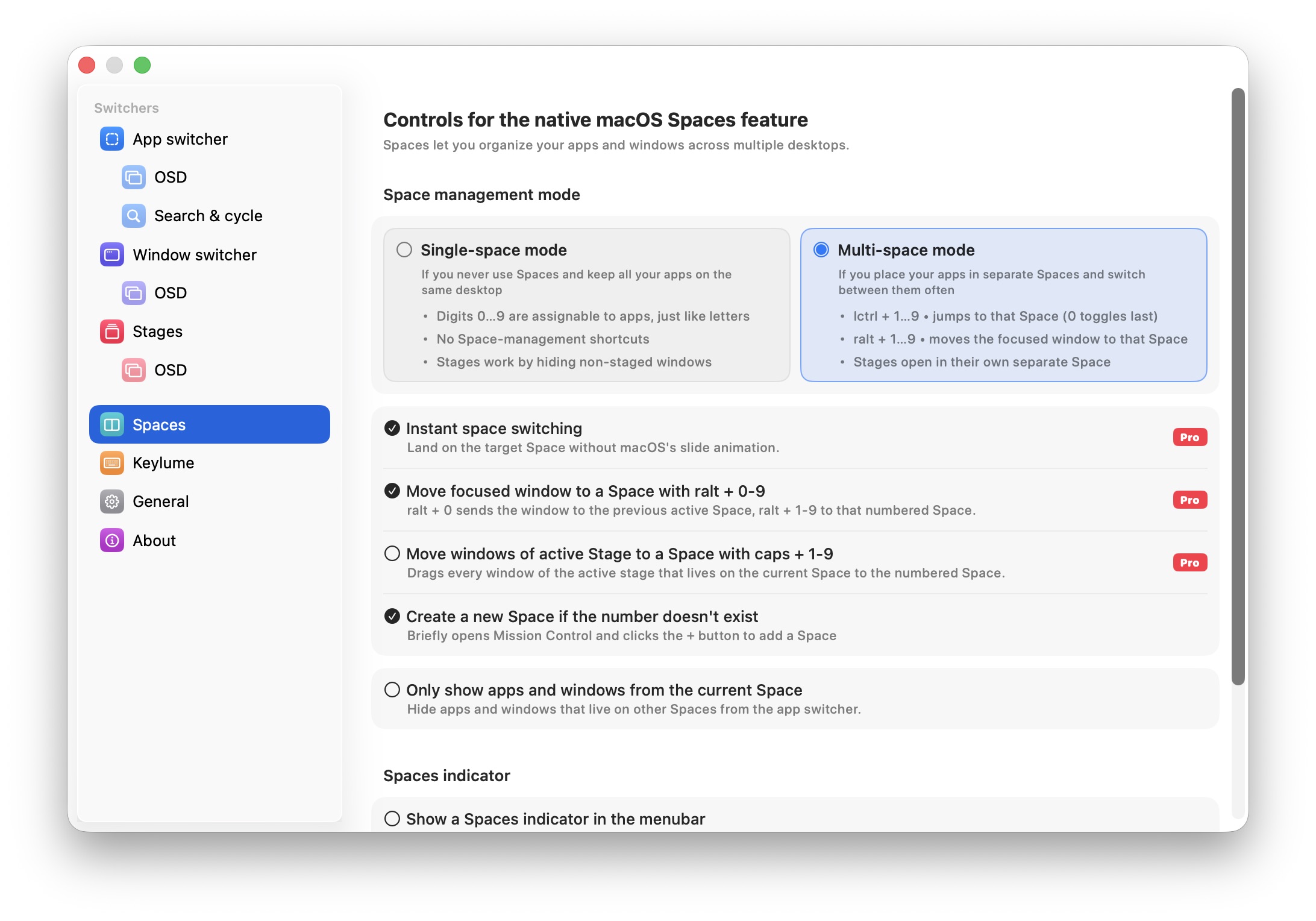
I recently started using spaces, a Mission Control feature that lets you set up separate Mac desktops for different tasks, to better organize my workflow. (For more info on this great productivity feature, see Apple’s support document on how to work in multiple spaces on Mac.)
I now have a dedicated space for each of my projects. Manually switching between them is a bit of a hassle and feels slow, especially when I am in the middle of a busy workday, but the rcmd update adds support for space switching. Pressing the right Command key followed by numbers 1-9 will switch to that specific space.
Since rcmd bypasses macOS’ default transition animation, switching between spaces feels almost instantaneous.
As part of my workflow, I constantly move windows between different spaces. Doing this manually in macOS feels slow and unnecessarily tedious. But rcmd v3 makes the process effortless. I just press the right Alt key followed by the target space number to instantly move the focused window there.
Fuzzy search
As mentioned, rcmd v3 turns the app into a full-fledged app launcher. In the previous version, I needed to manually assign shortcuts before I could open apps using the right Command + <shortcut key>.
But rcmd v3 adds fuzzy search to solve this problem. Now, I simply hold the right Command key and start typing the name of the app I want to open. As soon as I release the key, rcmd instantly launches the closest matching app. If there are multiple matches, I can select the second or third match by pressing the relevant number keys.
Instant fuzzy search apps and windows with ⌘ rcmd v3!
No Cmd-Space, no select and Enter needed, just “hold, type, release”
Launching tomorrow after more than a year in the making. https://t.co/76M5IG1R3R pic.twitter.com/qZArw7ipzV
— The low-tech guys (@thelowtechguys) May 24, 2026
App window management
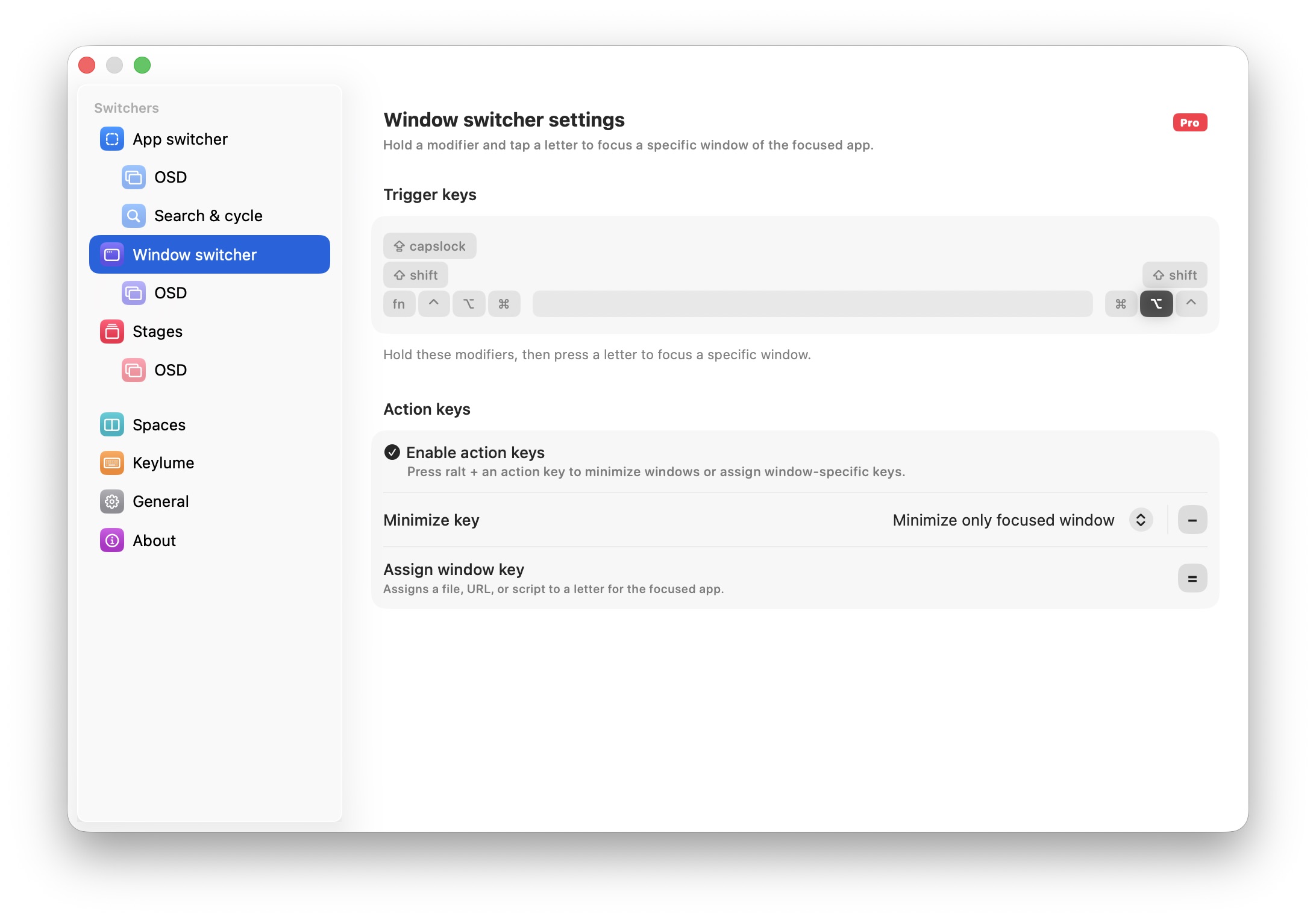
Photo: Rajesh Pandey/Cult of Mac
While rcmd already made app switching significantly faster, it did little to reduce the friction of managing multiple windows from the same app.
Luckily, rcmd v3 finally addresses that. I can now double-press the right Command key and hold it on the second press to bring up a searchable list of open windows.
From there, I can use the number keys to instantly switch to a specific app or use the Tab key to cycle through results. The usual Cmd-W, Cmd-Q and Cmd-H shortcuts work as well, so I can directly close, quit and hide apps.
If you press the right Command and Tab keys together, you can cycle through the open windows in a given space.
Plus, rcmd v3 lets you save specific app window layouts. For example, I can press right Option + C to instantly reopen my preferred Chrome setup with all the windows arranged exactly how I like them.
Stages
Screenshot: Rajesh Pandey/Cult of Mac
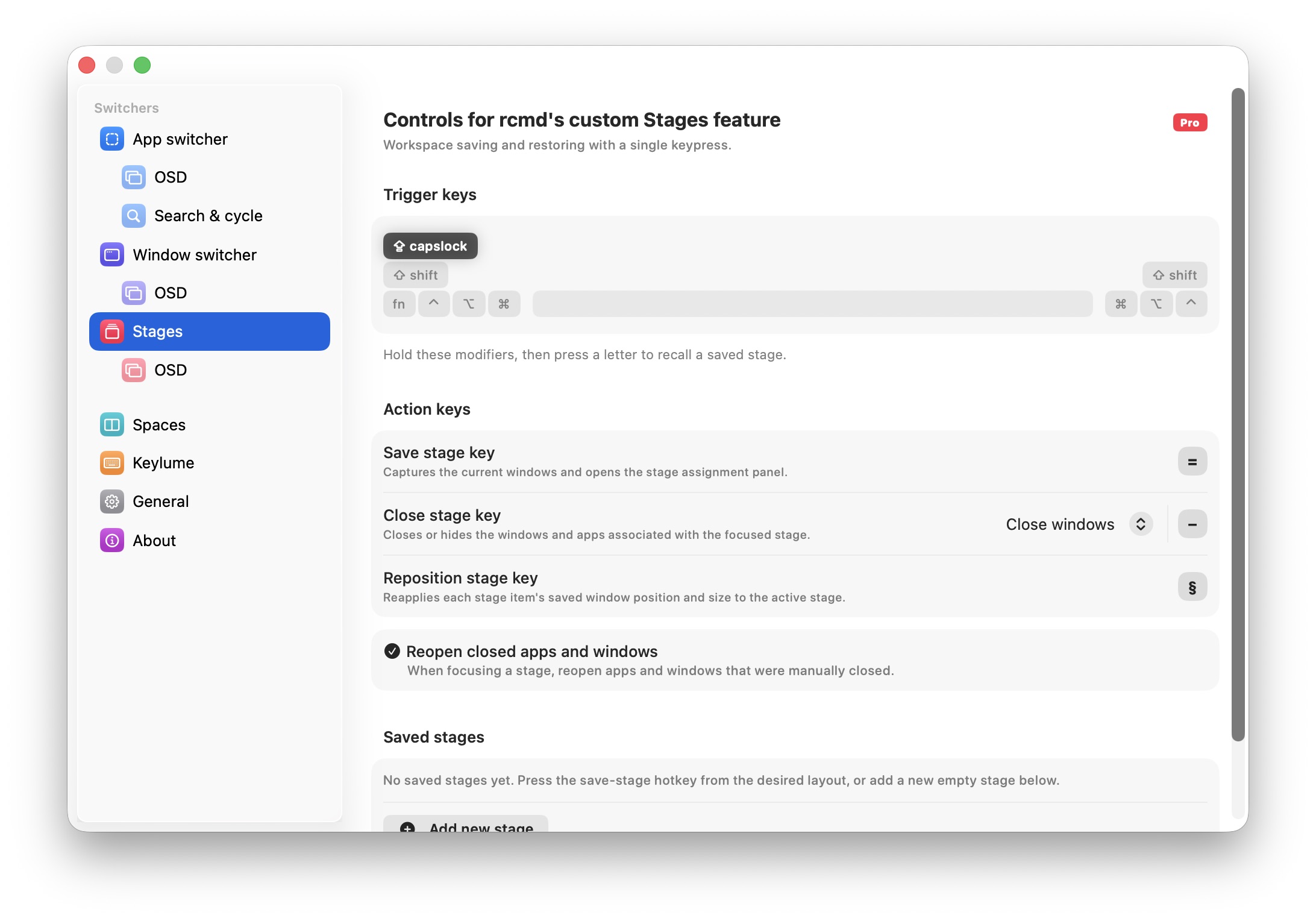
One of the most impressive additions in rcmd v3 is Stages. The feature lets you save an entire setup of apps and windows — including their positions, desktop spaces and folders — and restore everything with a single shortcut. It feels like creating custom work environments for different tasks.
For example, if I’m working on a writing project, I can set up Safari, Notes, Slack and my text editor exactly how I want across multiple spaces. The next time I need that setup, I can instantly restore the entire workspace with a keyboard shortcut instead of manually reopening and arranging every app again.
By default, this feature is assigned to work with the Caps Lock + letter keys. You can instantly save the current set of open apps, including their window positions, by pressing Caps Lock + = keys.
I also like that rcmd lets you quickly clean up when you are done. Instead of manually closing every app and window tied to a project, another shortcut (Caps Lock + -) will instantly close the entire workspace.
If you work with multiple apps across different spaces and projects, workspace management in rcmd v3 can significantly boost your productivity.
After using rcmd regularly, I barely reach for the mouse anymore when navigating between apps and windows. Almost every part of my workflow now happens through keyboard shortcuts, which feels significantly faster once the shortcuts become second nature.
Pricing
As you can tell, rcmd v3 is a big update. It costs 15 euros if you want to unlock the Pro features. You can take advantage of a 14-day free trial before deciding if you really need the Pro features. A single license will work on up to five Macs.
All the rcmd v2 features are available for free in rcmd v3. This includes app focusing and launching, app and window switching, and spaces switching, albeit with the default animation. Pro features include fuzzy search, workspace saving, instant space switching and more.
A powerful productivity tool, rcmd v3 bundles the functionality of multiple apps into a single tool. If, like me, you have grown tired of repeatedly pressing Cmd + Tab to switch between apps, rcmd v3 is a must-have.
Download: rcmd

Rajesh has been writing about consumer technology for over a decade, with a strong focus on iPhones, Macs and Apple’s ecosystem. He enjoys digging into Apple software updates, hardware changes, and discovering new Mac apps that make work faster and more enjoyable.